code-server-dark-mode-login-page
Dark Mode Login Page for Code-Server
This repository provides a dark mode theme for the login page of code-server, along with VS Code logos. The theme enhances the login experience with a sleek, dark interface.
Preview
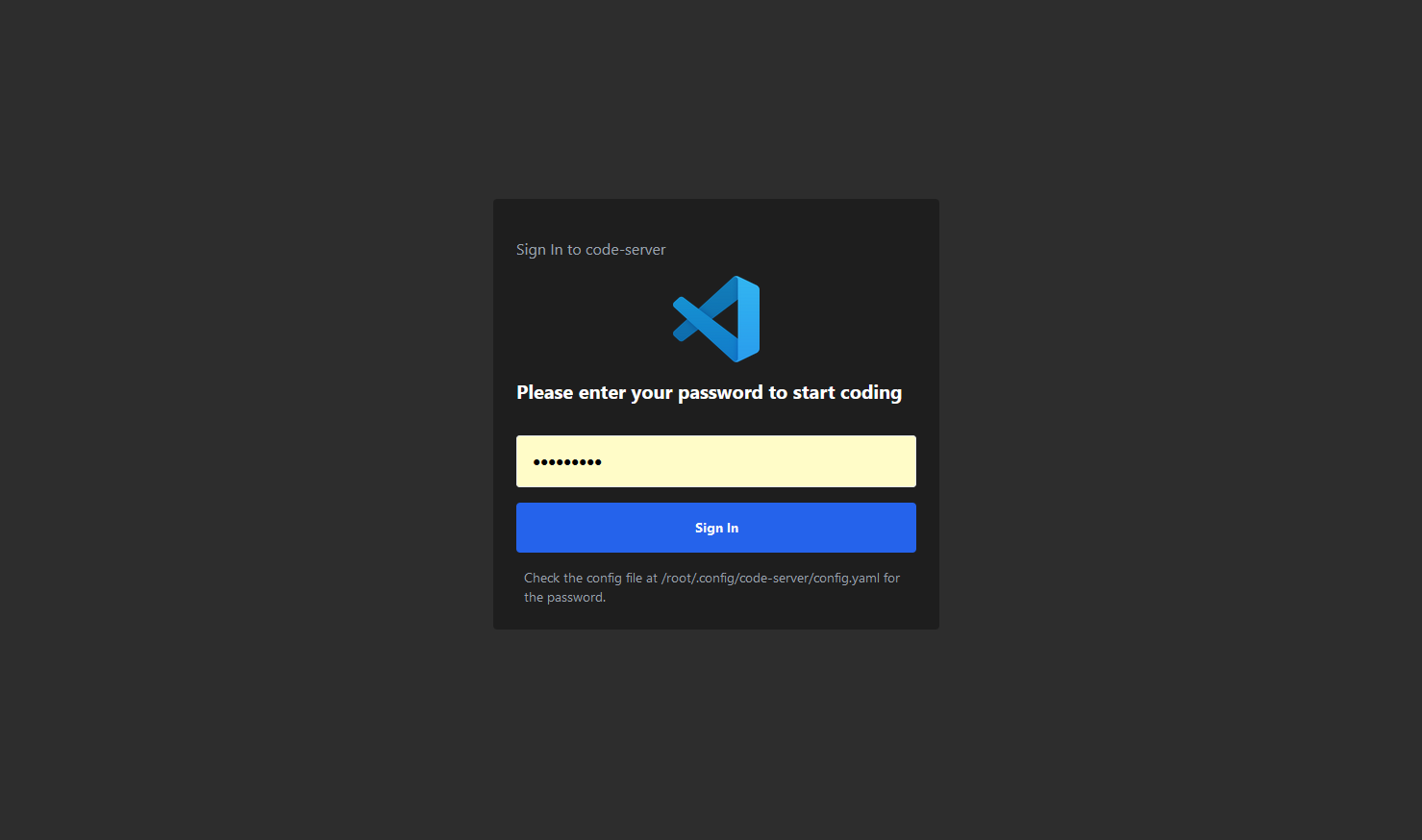
Features
- Dark Mode design
- Integrated VS Code branding for a consistent feel
- Customizable login page text (e.g., app name and welcome message)
Installation Instructions
Follow the steps below to install the dark mode theme on your code-server instance. Please note that after each code-server update or upgrade, this process will need to be repeated as code-server will overwrite the theme files.
Step-by-Step Installation
1. Download the repository archive and extract it into the usr (/usr/) directory. This will replace the original template files located in the code-server installation folder.
# Download the theme
wget https://github.com/sickplanet/code-server-dark-mode-login-page/archive/refs/heads/main.zip
# Extract the archive into the current directory
sudo unzip main.zip
# Copy theme files
sudo cp -r "code-server-dark-mode-login-page-main/usr/"* "/usr/"
# Remove the downloaded zip file
sudo rm main.zip
# Remove extracted folder
sudo rm -rf code-server-dark-mode-login-page-main/
# All of the above in one line command style
   wget https://github.com/sickplanet/code-server-dark-mode-login-page/archive/refs/heads/main.zip &&
    sudo unzip main.zip &&
    sudo cp -r "code-server-dark-mode-login-page-main/usr/"* "/usr/" &&
    sudo rm -rf code-server-dark-mode-login-page-main/ && sudo rm main.zip
2. Add or modify the following lines in config.yaml:
   app-name: VS Code (server)
   welcome-text: Please enter your password to start coding
2.1 Example commands to modify config.yaml:
For a regular user:
nano /home/USER/.config/code-server/config.yaml
For root:
sudo nano /root/.config/code-server/config.yaml
Notes
- The app-name and welcome-text configurations allow you to personalize the login page with your own branding or a custom welcome message.
- Ensure you restart code-server after making changes to the config.yaml for them to take effect
3. Restarting Code-Server:
After applying the dark mode theme and making any customizations (e.g., modifying the config.yaml to add custom app-name and welcome-text), you need to restart code-server for the changes to take effect.
#Restart code-server with the following command:
sudo systemctl restart code-server
Notes:
- This step is essential to apply any changes, including the theme or text customizations.
- You will need to perform this step after reinstalling the theme if code-server is updated or upgraded, as the update will restore the default theme files.
Contributing
Feel free to submit pull requests or open issues for feature requests, bug reports, or enhancements.